
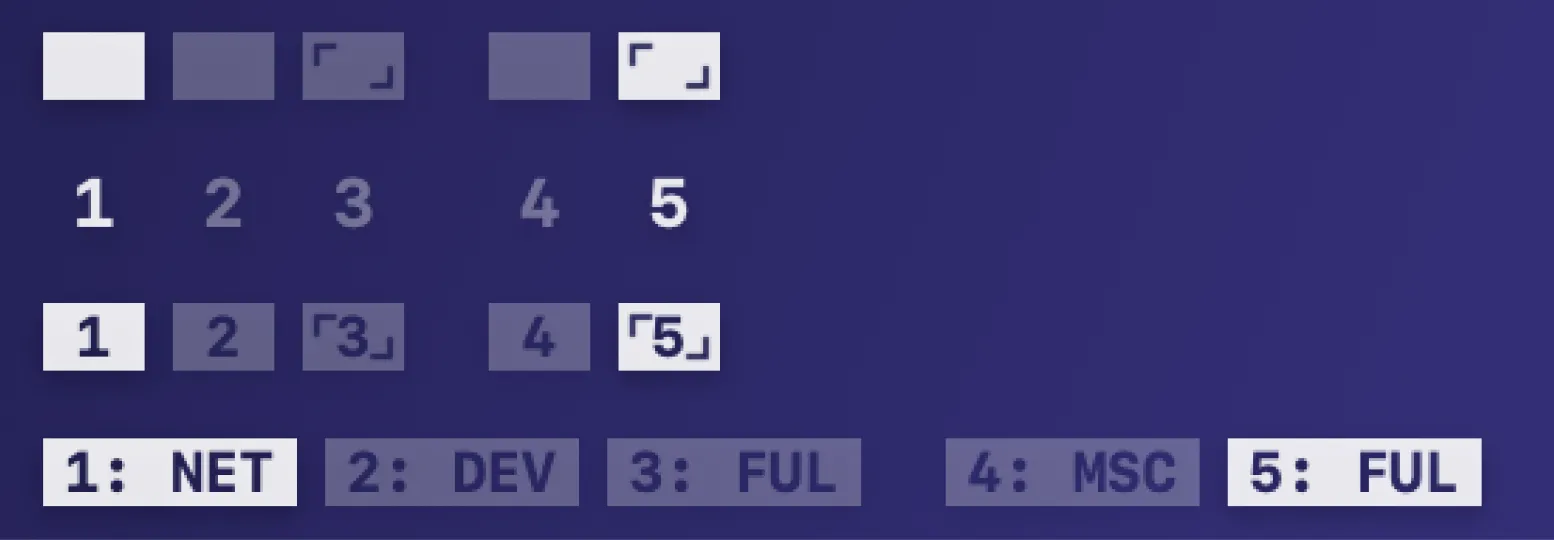
Spaceman displays macOS Spaces (virtual desktops) as compact indicators in the menu bar, showing the currently active Space alongside all other available Spaces at a glance. (Free, open-source)
The app provides four display styles selectable from preferences: Rectangles renders filled and empty squares distinguishing active, inactive, and fullscreen Spaces; Numbers shows only the current Space number; Rectangles with Numbers combines both; and Named Spaces displays custom text labels assigned to each Space. Each style adapts to the menu bar icon in real time as the user switches between Spaces.
Multi-display configurations are supported, with separate Space indicators rendered for each connected monitor. Custom names of up to 3 characters can be assigned to individual Spaces, enabling workflow-based labeling such as “DEV”, “WEB”, or “MSG”. Visual states differentiate active spaces, inactive spaces, fullscreen applications, and display gaps between monitors.
Icon refresh behavior is configurable: a custom keyboard shortcut triggers an immediate manual update, or automatic background refresh at a 5-second interval can be enabled. Spaceman uses Sparkle for automatic app updates, LaunchAtLogin for startup launch, and the KeyboardShortcuts library for configurable hotkeys.
System requirements: macOS 15 Sequoia or later. Apple Silicon and Intel Mac native. Install via Homebrew (brew install spaceman) or direct DMG download from GitHub.
Pricing: (Free, open-source) MIT license.
Limitations: Space names are limited to 3 characters maximum. Icon updates can occasionally lag behind Space switches, requiring manual refresh or the 5-second background polling option. No drag-to-reorder Spaces functionality is provided within the app. Requires macOS 15 Sequoia, excluding users on older macOS releases.
Alternatives: WhichSpace (free, open-source; shows current Space number only, the project Spaceman is built upon); TotalSpaces2 ($6, one-time, by BinaryAge; provides a grid-based Space switcher with animation and richer management, requires disabling SIP); macOS built-in Mission Control (⌃↑ shows all Spaces but offers no persistent menu bar indicator).
Suitable for users who work across multiple Spaces and want a persistent, customizable menu bar indicator rather than relying on keyboard shortcuts or Mission Control to track their current workspace.


