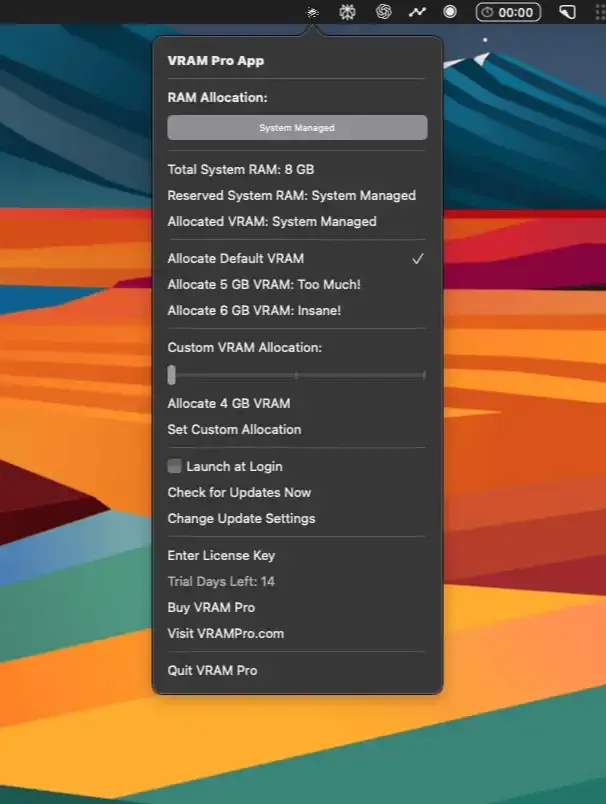
VRAM Pro provides manual GPU memory allocation for Apple Silicon Macs, offering a graphical interface for reallocating unified memory from the system RAM pool to GPU tasks. The app addresses scenarios where macOS’s automatic GPU memory management does not prioritize GPU-intensive workloads as needed.
The app does not create additional GPU memory but rather reallocates existing unified memory. On a Mac with 32GB of RAM, users can dedicate up to approximately 30GB to GPU work. On systems with 16GB unified memory, allocation can reach approximately 14GB. The interface displays current VRAM status and offers preset configurations for AI inference, video editing, 3D rendering, or custom allocations.
Key use cases include running local language models through tools like Ollama or LM Studio, where predictable GPU memory allocation prevents mid-inference crashes. Video editors working with DaVinci Resolve or Final Cut Pro can dedicate more memory to GPU acceleration. For 3D work in Blender, consistent memory allocation improves render times.
Changes require administrator approval with hash validation for security. Memory allocations persist across reboots until modified, and users can restore default macOS memory management through the app. Performance impact is minimal since the app adjusts system parameters rather than actively managing memory.
Limitations: VRAM Pro works exclusively with Apple Silicon Macs. Intel Macs with discrete GPUs already have dedicated VRAM and do not benefit from this approach. Maximum allocable memory scales with total RAM, meaning 8GB Macs can only allocate up to 6GB for GPU tasks.
VRAM Pro offers a free trial version with paid licensing available through Gumroad. The developer provides regular updates and responsive support.
Suitable for users running local AI models, processing high-resolution video, or performing 3D rendering on Apple Silicon who need predictable GPU memory allocation beyond macOS automatic management.


