DisplayMode Menu provides quick resolution switching from the macOS menu bar, eliminating navigation through System Settings for display adjustments.
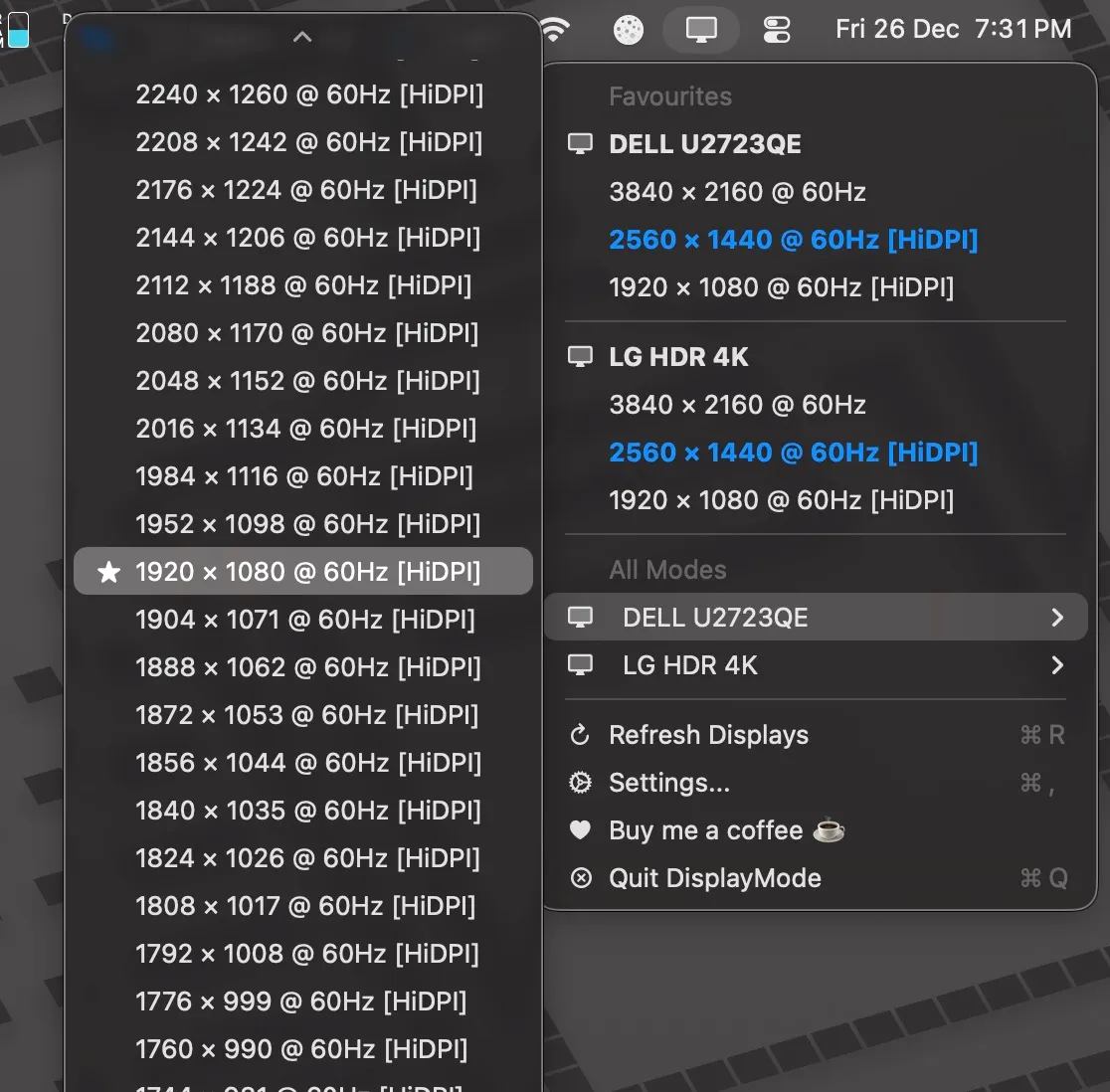
Clicking the menu bar icon displays all available resolutions for each connected monitor, filtered to show only modes running at 60Hz or higher. The current resolution appears in bold blue text for immediate identification. The favorites system supports up to 22 preset resolutions for quick access to frequently used modes. Clicking a display name copies it to the clipboard, useful for documentation or troubleshooting multi-monitor setups.
Multi-monitor configurations are handled with separate sections for each display, listing all available modes independently. The app automatically refreshes when displays connect or disconnect.
Shortcuts integration registers DisplayMode Menu as a system action, enabling resolution changes through macOS automation. The app accepts two input formats: settings format (“2560,1440,60,true”) or legacy format (“1920x1080@60”). This allows building workflows that adjust display settings based on app launches, time of day, or other triggers.
The app is free and open-source under the Apache 2.0 license. Source code is available on GitHub, with active development (v0.2.1 released December 2024).
System requirements: macOS 13 Ventura or later. Installation via GitHub releases page; requires removing quarantine attribute via Terminal.
Limitations: The app focuses solely on resolution switching. No display color calibration, brightness controls, or comprehensive monitor management features are included. Users needing full display management may require additional utilities.
Alternatives: SwitchResX offers comprehensive display management with more features but requires purchase. BetterDisplay provides similar functionality with additional monitor controls. Native System Settings handles resolution changes without additional software.
Suitable for users who regularly adjust display resolutions or want to automate display settings through Shortcuts workflows.


