macOS buries useful settings in nested preference panes. Toggling Dark Mode requires System Settings > Appearance. Showing hidden files means a Terminal command or memorizing Command+Shift+Period. Connecting AirPods involves clicking through Bluetooth menus. None of these are difficult, but the friction adds up when you toggle settings frequently.
Menu bar toggle utilities consolidate these scattered controls into one-click actions. After using both free and paid options, I’ve found the differences matter less than simply having quick access to frequently-used toggles.
The Open-Source Option
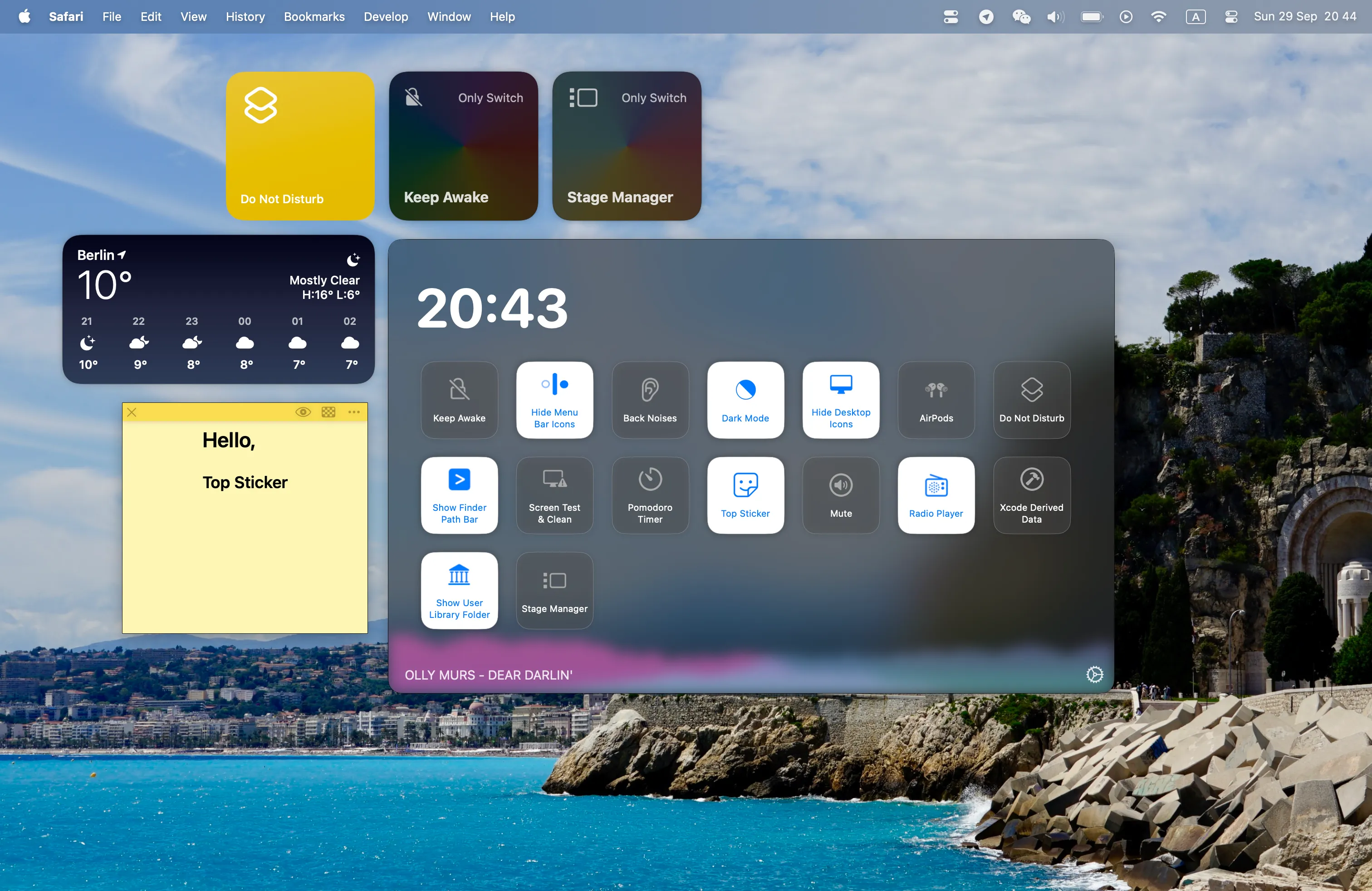
OnlySwitch (Free, open-source) provides over 20 system toggles from a single menu bar icon. The list includes Dark Mode, Night Shift, Do Not Disturb, desktop icon visibility, hidden file visibility, AirPods connection, and screen saver activation.
The “Evolution” feature sets it apart from simpler alternatives. You can create custom switches using shell commands or AppleScript, extending functionality beyond the built-in options. I use this to toggle specific application settings and run maintenance scripts.
Installation via Homebrew (brew install only-switch) works cleanly. The project receives regular updates with active maintenance on GitHub. Apple Widgets support on macOS Sonoma adds another access method beyond the menu bar.
Limitations relate to macOS system boundaries. Some toggles require specific permissions, and behavior may vary across macOS versions. Custom Evolution switches require scripting knowledge to create, which limits the feature for non-technical users.
The Polished Commercial Option

One Switch ($4.99) offers a similar toggle collection with a more refined interface. The app covers approximately a dozen common toggles: Dark Mode, Night Shift, Do Not Disturb, desktop icons, hidden files, AirPods connection, screen resolution switching, and sleep prevention.
The Keep Awake switch prevents Mac sleep without adjusting Energy Saver settings—useful for downloads or long-running processes. Screen Cleaning mode locks keyboard and trackpad for safe screen wiping. The AirPods connection feature works with Powerbeats Pro and other Bluetooth audio devices.
A 7-day free trial requires no prepayment, which allows testing before purchase. The app is also available through Setapp subscription for users on that platform.
The limitation is scope. One Switch provides curated toggles without the custom scripting extensibility of OnlySwitch. For users who only need the built-in options, this is sufficient. Power users wanting custom automation should consider the open-source alternative.
Which One to Choose
For most users: try OnlySwitch first. It’s free, open-source, and covers the common toggles. If you need custom switches through scripting, it’s clearly the better option.
For users wanting a polished experience without configuration: One Switch. The $4.99 price is reasonable for lifetime updates, and the interface is marginally cleaner.
For minimal needs: macOS Control Center handles basic toggles (Wi-Fi, Bluetooth, Focus, AirDrop) without third-party software. If your toggle needs are limited to these, you might not need additional utilities.
My Usage
I run OnlySwitch primarily for the desktop icon toggle and hidden file visibility. Presentations look cleaner without desktop clutter, and development work often requires viewing dotfiles. The keyboard shortcut support means I rarely click the menu bar icon directly—the toggles trigger from customized shortcuts instead.
The AirPods quick-connect is surprisingly useful. Bluetooth device switching in macOS involves more clicks than necessary; the one-click toggle reduces that to a single action.
Whether these utilities save meaningful time depends on how frequently you adjust system settings. For occasional changes, the native System Settings works fine. For daily toggles, the menu bar access removes enough friction to be worthwhile.