I resisted the Pomodoro Technique for years. Twenty-five minutes felt arbitrary, and the forced breaks seemed disruptive. Then I tried it during a week of particularly scattered work, and the structure helped more than I expected. The trick was finding a timer that stayed out of the way until needed.
Browser-based timers required keeping a tab open. Phone timers meant picking up a device I was trying to avoid. Menu bar timers solved both problems—always visible, never intrusive, no context switching required.
The Open-Source Standard
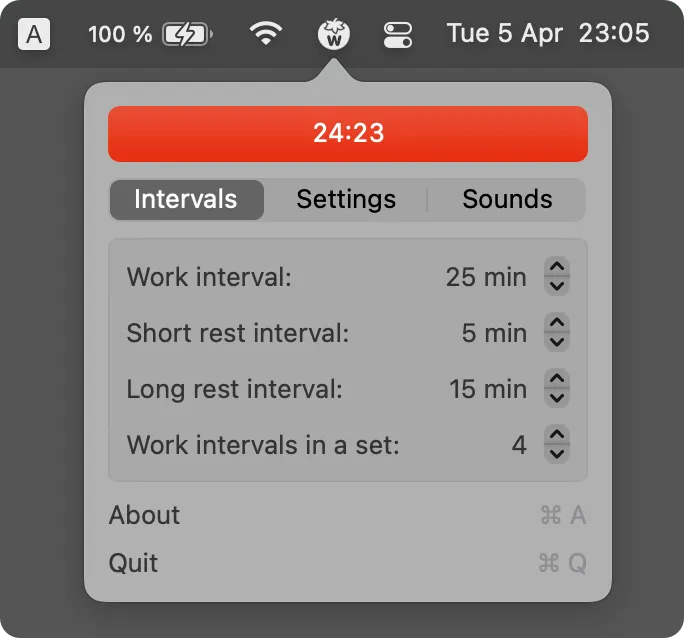
TomatoBar (Free, open-source) has become my daily driver. The app sits in the menu bar showing current session status, and that’s essentially it. Start a timer, work, take a break, repeat. The JSON productivity logging is the feature I didn’t know I wanted—every state transition gets logged automatically, creating a record of actual focus time.
Installation via Homebrew (brew install --cask tomatobar) works cleanly. Global hotkeys let you start, pause, or reset without touching the mouse. The 2,800+ GitHub stars suggest I’m not alone in finding this useful.
The limitation is scope. TomatoBar handles timing well but doesn’t include task management, website blocking, or detailed analytics dashboards. For a pure Pomodoro timer, that’s exactly right. If you want more integrated productivity tools, look elsewhere.
Website Blocking Included
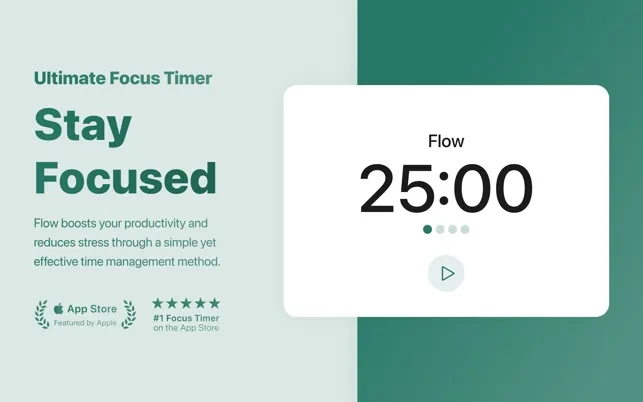
Flow (Free, Pro $2.99/month) adds website blocking to the Pomodoro formula. During focus sessions, it blocks up to 25 sites across Safari, Chrome, Edge, and other browsers. Blocking pauses automatically during breaks.
The Apple Calendar integration creates entries for completed sessions, which I use for weekly time audits. The free version covers core functionality; Pro adds Commitment Mode (prevents timer pausing), custom session lengths, and session titles for categorizing different work types.
The macOS 15.0 requirement excludes older systems, and the subscription model for Pro features won’t suit everyone. But for users who need enforced focus with website blocking, Flow is more effective than relying on willpower alone.
Gesture-Based Timing
Gestimer approaches the problem differently. Instead of clicking through menus, you drag the menu bar icon downward. Drag distance determines duration—short drags for quick timers, longer drags for extended sessions. The interaction takes about one second.
This works well for varied timing needs throughout the day. A 5-minute break, a 45-minute focus block, a 2-hour deep work session—all set with the same gesture, just different drag distances. Apple Reminders integration syncs timers across devices.
The learning curve is real. Initial use involves overshooting or undershooting target durations until muscle memory develops. But once calibrated, the speed advantage over traditional input becomes noticeable.
Which One to Choose
For pure Pomodoro with no extras: TomatoBar. Free, open-source, does one thing well.
For Pomodoro with website blocking: Flow. The blocking feature provides external enforcement when self-control isn’t enough.
For varied timing needs beyond Pomodoro: Gestimer. The gesture interface handles arbitrary durations faster than menu-based alternatives.
I run TomatoBar for structured work sessions and occasionally use Gestimer for quick reminders that don’t fit the Pomodoro pattern. The combination covers most timing needs without cluttering my menu bar with multiple utilities.