My menu bar hit maximum density last month when I installed my 23rd utility app. The icons stretched from edge to edge across my MacBook Pro, pushing the clock into obscurity and hiding notification badges I actually needed to see. The notch made everything worse—what used to be annoying became genuinely unusable.
I’d been ignoring the problem for years, manually clicking through menus to find the right app, occasionally missing important notifications because the icon was squeezed out of view. The breaking point came during a video call when I needed to adjust my audio settings mid-conversation and spent 30 seconds hunting for the icon while everyone waited.
That evening I committed to solving the problem properly. After trying every menu bar manager I could find, I landed on solutions ranging from elegantly simple to surprisingly sophisticated.
The Free, Open-Source Starting Point

Hidden Bar (Free, open-source) solved my immediate problem in about three minutes. The app adds a divider to your menu bar—drag icons to the right of the divider, and they hide behind a chevron. Click the chevron when you need access. That’s the entire interface.
I’ve been running Hidden Bar on my Mac Mini for two months without thinking about it. The app uses negligible resources, starts automatically at login, and works identically in light and dark modes. The auto-hide feature can collapse the icons automatically after a configurable delay, which keeps the menu bar clean without manual intervention.
The limitation is scope. Hidden Bar does exactly what it promises—hide icons and reveal them on click. No search functionality, no automation, no appearance customization. For users who want a quick solution to menu bar clutter without configuration overhead, this handles the core need.
Installation via Homebrew (brew install --cask hiddenbar) or the Mac App Store takes seconds. The source code is available for inspection, which matters for system-level utilities.
Advanced Organization with Search
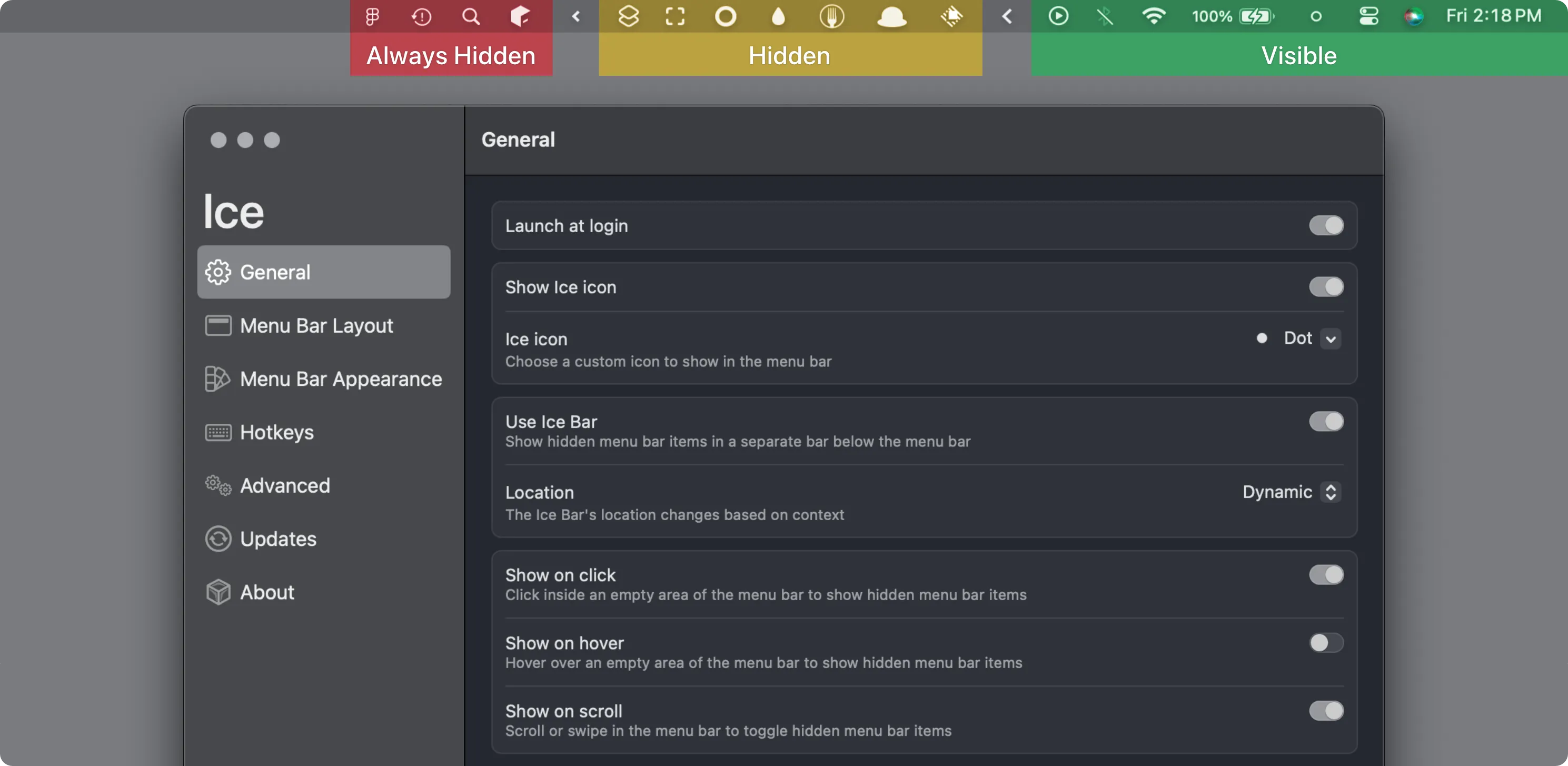
Ice (Free, open-source) approaches menu bar management with more sophistication. The app divides your menu bar into three tiers: visible, hidden, and always-hidden. The visible section works like a normal menu bar. The hidden section reveals on click. The always-hidden section stays concealed unless you specifically search for it.
The search feature changed how I use menu bar apps. Press the customizable hotkey, type a few characters, and Ice surfaces the relevant app instantly. I no longer need to remember where I placed that audio utility or whether I hid the VPN controls. The keyboard-driven workflow eliminated visual scanning entirely.
After testing Ice for six weeks on my MacBook Pro, I appreciate the customization depth. Menu bar appearance adjustments include tinting, shadows, borders, and spacing modifications. Custom hotkeys can toggle different sections independently, which supports workflow-specific layouts. During focus sessions, I collapse everything except timer and communication apps. During coding sessions, I reveal developer tools and system monitors.
The macOS 14+ requirement excludes older systems, and full functionality requires screen recording permissions. Users wanting basic hide/show functionality might find the three-tier system unnecessarily complex. But for users with extensive menu bar app collections who value keyboard navigation, Ice provides capabilities beyond simpler alternatives.
Installation via Homebrew (brew install --cask jordanbaird-ice) or GitHub releases. The GPL-3.0 license permits code inspection and modification.
Context-Aware Automation
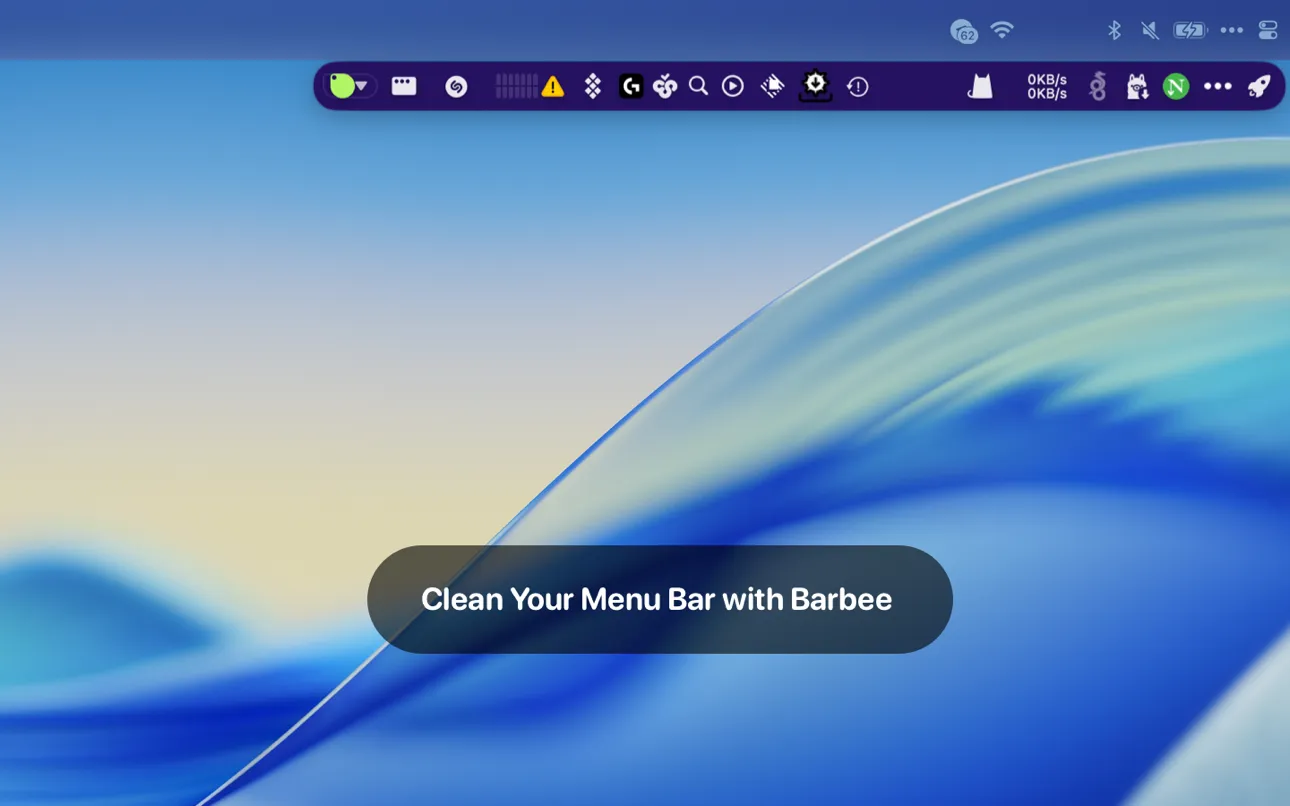
Barbee ($9.99 lifetime or $2.99/year) introduced automation triggers that actually changed my workflow. The app shows development tools automatically when I launch VS Code, hides communication apps during Focus sessions, and displays system monitors when CPU usage spikes above 70%. These context-aware layouts eliminate manual menu bar reorganization.
The enhanced mode adds a second menu bar row beneath the primary bar, which addresses notch-related space constraints. This accommodates 20+ additional items without hiding them completely. The Spotlight-style search (customizable keyboard shortcut) provides instant access to any item, including hidden ones.
Visual customization includes icon replacement with emoji or custom indicators, and spacing reduction between items. I reduced spacing by 30% and gained enough room for four additional icons without hiding anything. The app runs offline with no data collection, which matters for a utility with extensive system access.
I’ve been working with Barbee on my MacBook Pro for two months, primarily using the automation rules. The context-switching happens seamlessly—when I open Slack, communication apps appear automatically. When I close development tools at end of day, they disappear. The mental overhead of menu bar management dropped to zero.
The limitation is flexibility. Keyboard shortcuts apply to sections rather than individual items, and there’s no AppleScript support for external automation. Users needing per-item hotkeys will find this restrictive. The $9.99 lifetime license is reasonable, though the $2.99 annual subscription option exists for users wanting lower upfront cost.
The Premium Standard
Bartender ($16 one-time) has been the menu bar management standard for over a decade, and the maturity shows. Bartender 5 introduced a preset system with automatic triggers—battery level thresholds, WiFi network connections, location awareness, time-based switching. The automation sophistication exceeds other options.
The Bartender Bar feature adds a secondary row beneath the main menu bar, similar to Barbee’s enhanced mode but with more visual polish. Menu bar items reveal through multiple interaction methods: clicking, hovering, scrolling, or swiping. Item grouping organizes related utilities together with spacers providing visual separation.
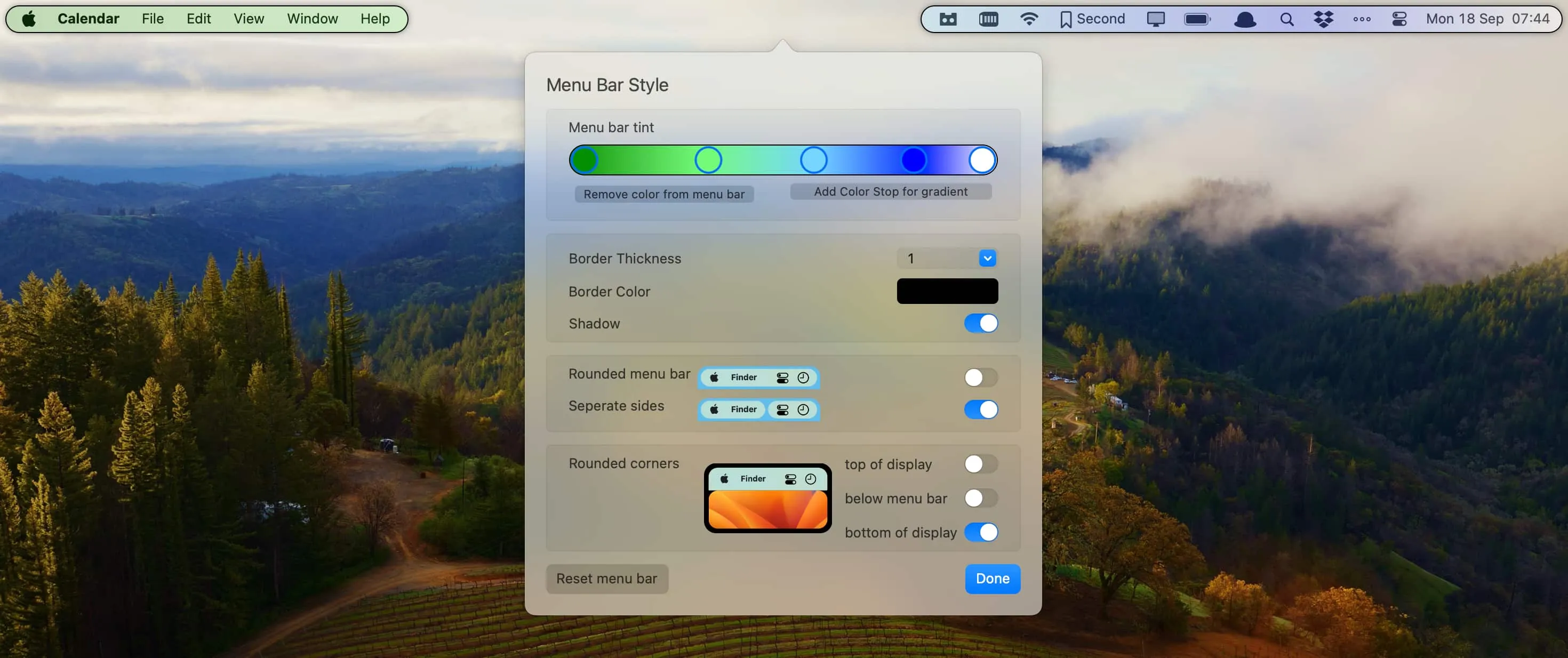
Visual customization includes color tints, gradients, borders, shadows, and a rounded pill-style appearance option. AppleScript support enables automation integration beyond the app’s built-in triggers. An upcoming widget system will allow creation of custom menu bar items.
The 4-week free trial provides sufficient time to evaluate whether the feature depth justifies the price. I tested Bartender for three weeks before returning to Ice—not because Bartender lacked capabilities, but because I didn’t need the preset complexity or visual customization for my workflow. Users with sophisticated automation requirements or aesthetic preferences will find value in Bartender’s approach.
The macOS Sonoma minimum requirement excludes older systems, and Bartender 4 remains available for legacy support. The one-time $16 purchase feels appropriate for a mature, actively-developed utility.
Choosing Your Solution
The decision depends on how deeply menu bar clutter affects your workflow. For basic icon hiding without configuration: Hidden Bar. For advanced organization with keyboard-driven search: Ice. For context-aware automation: Barbee. For comprehensive control with maximum customization: Bartender.
I run Ice on my MacBook Pro because the search functionality and three-tier system handle my 20+ utilities effectively without automation overhead. On my Mac Mini with fewer apps, Hidden Bar provides sufficient organization without unnecessary complexity.
What surprised me most about solving this problem was the immediate reduction in cognitive load. I no longer scan the menu bar looking for icons, miss notifications because badges are hidden, or waste time clicking through menus. The right menu bar management app doesn’t just organize icons—it eliminates an entire category of friction from daily computer use.