One of my most-visited browser bookmarks used to be a hex-to-RGB converter. Every time I needed to translate a color value while writing CSS or dropping hex codes into a design file, I’d switch tabs, paste the value, wait for the page to load, copy the result, and tab back. I did this dozens of times a day without ever questioning whether there was a better way.
There is. Menu bar color pickers handle this in about two keystrokes, and the better ones do quite a bit more.
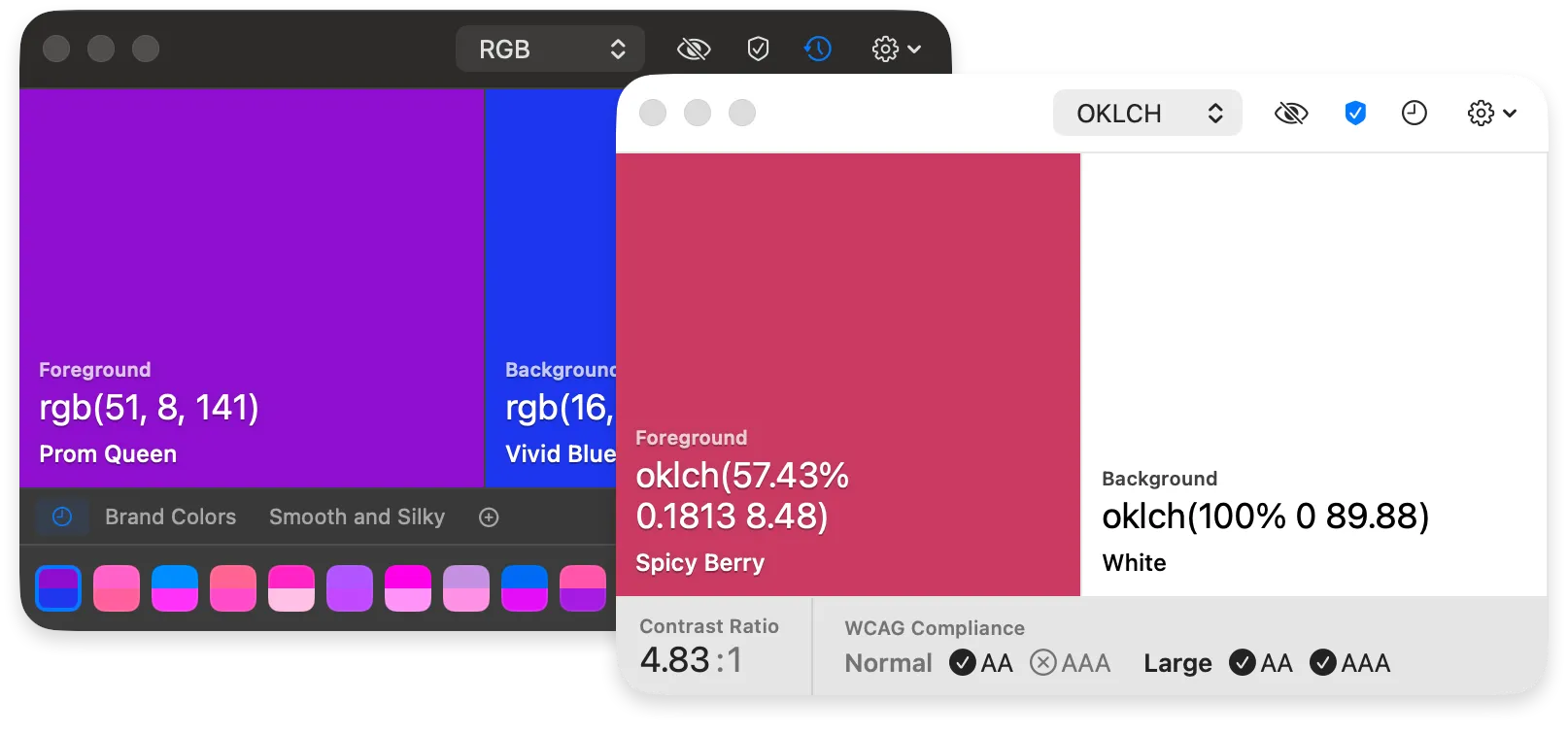
Pika (Free, open-source) is the starting point I’d recommend for most people. Press ⌘D from any application and the eyedropper activates immediately, with no app switching required. The foreground and background color wells sit in the menu bar showing whatever you last sampled. Seven formats are supported: Hex, RGB, HSB, HSL, LAB, OpenGL, and OKLCH. The OKLCH support is useful if you’re writing CSS with modern color spaces, since you can pick a value directly from a reference image and paste it into a stylesheet without a conversion step.
The open-source codebase under the MIT license means you can inspect exactly what it’s doing with your screen data. Installation goes via Homebrew (brew install --cask pika) or as a direct download from the developer’s site. The honest limitation: Pika doesn’t save swatches or manage palettes. If you need to organize colors across projects, you’ll want something else.
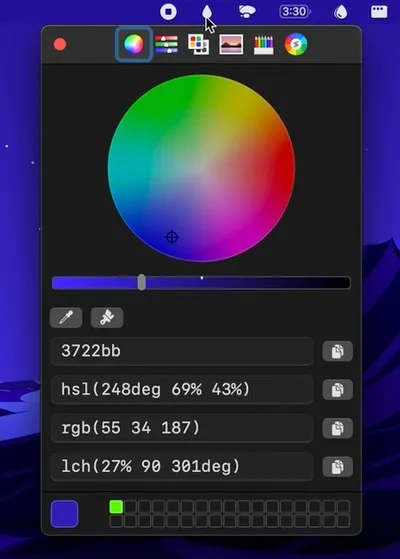
System Color Picker (Free) takes a different approach by surfacing the native macOS color panel in the menu bar. The native picker has been in macOS for years, but it’s buried under application menus that most apps don’t expose. System Color Picker puts a global keyboard shortcut on it and adds format conversion for Hex, HSL, RGB, OKLCH, LCH, and CMYK. It also maintains a recent color history and lets you build custom palettes using the same underlying macOS swatch system. If you’re already comfortable with how the system color panel works, this feels like an extension rather than a new tool to learn. Both this and Pika are free, so trying both costs nothing.
For developers who want conversion results delivered as actual code, Universal Color Converter ($1.99) generates ready-to-paste snippets for CSS, Swift (AppKit and UIKit), Java, C#, and Dart the moment you enter a color value. Enter a hex code and you get RGB, HSL, and four language-specific code blocks at once. At 217 KB, it barely registers as an install. The scope is deliberately narrow: HEX, RGBA, and HSL only, with no on-screen color picking and no palette management. But for moving quickly between a design file and a code editor, it earns its two dollars without overcomplicating the task.

Hexo (Paid, one-time purchase, 7-day trial available) is the option when the others aren’t enough. Alongside screen color picking, it extracts palettes from images using K-means or median-cut algorithms, which makes deriving a color scheme from a brand photo or logo take seconds rather than minutes. The WCAG AA and AAA contrast checking integrates directly into the palette view, so you can verify whether a text-on-background combination meets accessibility standards without leaving the app. Palettes organize into folder hierarchies and export to JSON, Adobe ASE, CSS, and SCSS. A colorblind simulation mode lets you preview how a palette reads under different types of color vision deficiency, which I’d previously only done through browser extensions.
Two limitations worth knowing: no cloud sync means palettes stay local only, and there’s no direct Figma or Sketch plugin integration, so export still involves a clipboard or file step.
If you’re looking for alternatives beyond these four, Sip and Pastel both offer palette management with team-sharing features, though both use subscription pricing. ColorSnapper 2 is a capable lightweight option closer to Pika in scope.
The practical recommendation: most people will do fine with Pika since it’s free, keyboard-driven, and handles every common format. Add System Color Picker if you want palette organization without paying. Reach for Universal Color Converter when code snippets matter more than picking. Hexo makes sense if you regularly derive palettes from images or need WCAG accessibility verification built directly into your color workflow.