After three years with my M2 MacBook Air, battery health dropped to 89%. Not catastrophic, but enough to make me wonder if I could have done better. The answer, I’ve learned, is probably yes—if I’d paid attention to charging habits earlier.
The problem with MacBook batteries isn’t mysterious. Lithium-ion cells degrade faster when kept at 100% charge for extended periods. If you work primarily from a desk with your laptop plugged in, that’s exactly what happens. Apple’s built-in “Optimized Charging” helps, but it’s a black box you can’t control.
Menu bar battery utilities offer visibility and control that macOS doesn’t provide natively. After evaluating several options on my Mac Mini M4 and MacBook Air, here’s what I found worth using.
Charge Limiting
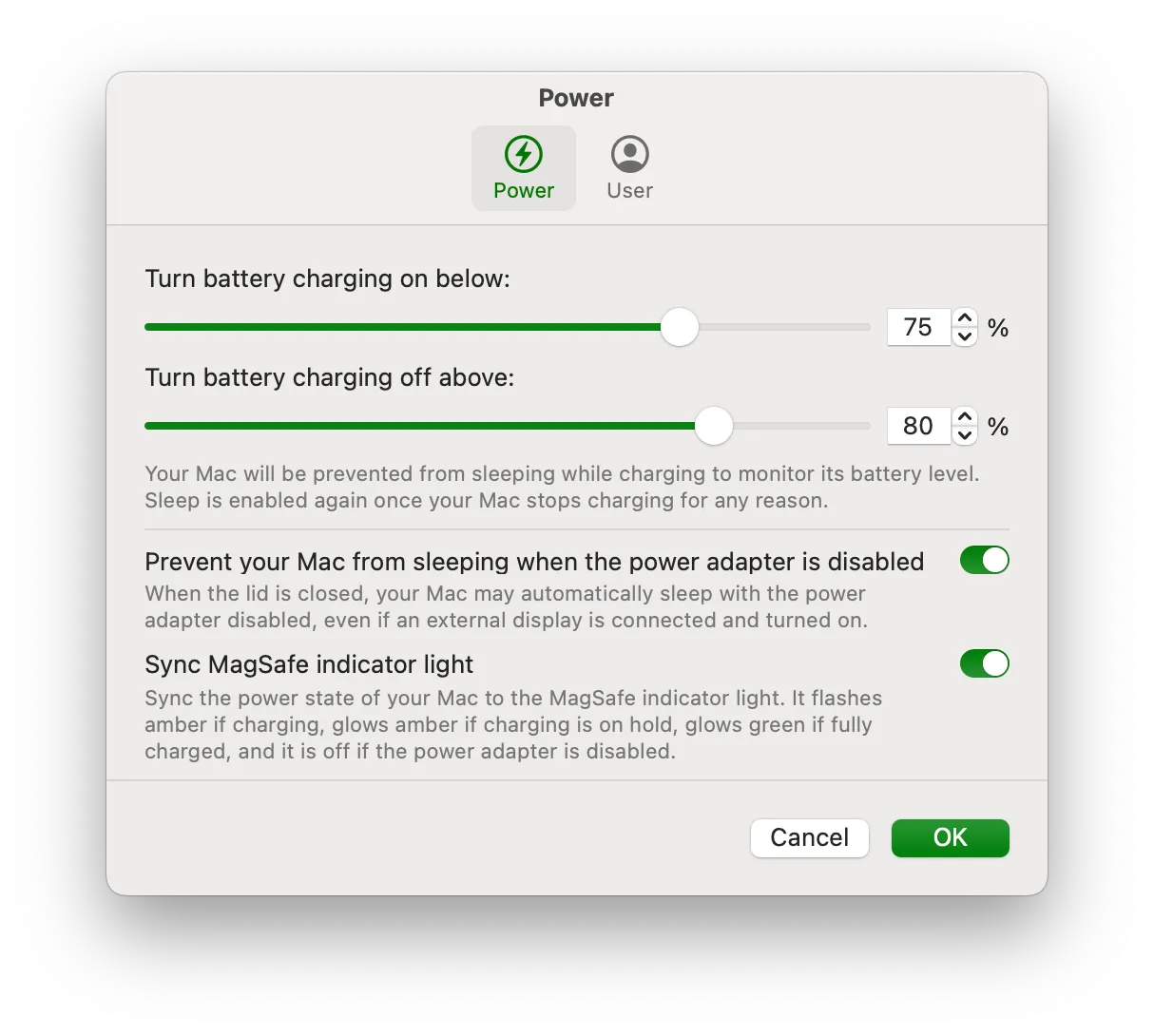
Battery Toolkit (Free, open-source) gives you manual control over Apple Silicon charging. Set a maximum charge level (minimum 50%) and a minimum discharge level (minimum 20%), and the app manages charging automatically within those bounds. You can also disable the power adapter through software without unplugging it—useful for forcing discharge cycles.
The interface is minimal, which suits me. Install via Homebrew (brew tap mhaeuser/mhaeuser && brew install battery-toolkit), disable Apple’s Optimized Charging in System Settings, and configure your limits. The app handles the rest.
The limitation: Apple Silicon only, and you need to allow the unsigned app through System Settings. For users comfortable with open-source software from GitHub, this is fine. Others might prefer a more polished option.
Battery Monitoring

Bettery ($9.99) displays comprehensive battery data directly in the menu bar: charge percentage in the icon itself, plus power consumption in watts, temperature, cycle count, and health assessment when you click. The historical charge visualization tracks behavior over time.
The macOS 15.2 requirement is limiting. If you’re on an older system, alternatives like coconutBattery provide similar monitoring with broader compatibility.
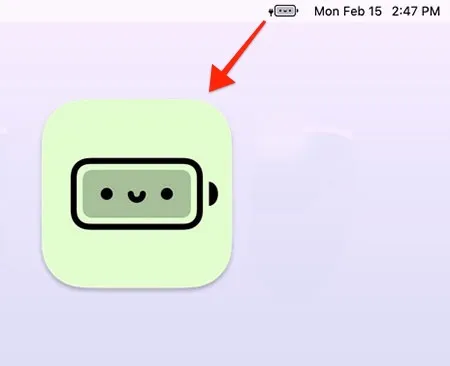
Battery Buddy (Free) takes a different approach entirely. It replaces the standard battery icon with emoji representations. A happy face at full charge, increasingly concerned expressions as power drops. Sounds gimmicky, but the developer’s reasoning makes sense: the red low-battery warning color triggers stress responses in some users. The emoji version conveys the same information without the anxiety.
My Setup
I run Battery Toolkit on my MacBook Air with limits set to 80% maximum, 40% minimum. The laptop stays mostly plugged in, but the battery cycles within that range rather than sitting at 100%. Whether this actually extends battery life long-term remains to be proven on my specific machine, but the science supports keeping lithium-ion cells away from the extremes.
On the monitoring side, I check Bettery occasionally to track cycle count and health percentage. The historical data helps me understand whether my charging habits are working or if I’m optimizing for nothing.
Alternatives Worth Considering
AlDente offers similar charge limiting with a more polished interface, though it uses a freemium model. Apple’s built-in Optimized Charging works automatically for users who prefer hands-off approaches—it just doesn’t give you the same level of control or visibility.
The reality is that battery degradation is inevitable. These tools let you slow it down, but they won’t stop it. Whether the effort is worthwhile depends on how long you keep your laptops and how much the eventual battery replacement cost bothers you.